Discord audio
Discord audio routes the coach through a Discord voice channel instead of your computer speakers: GT Coach joins the channel and speaks there, you join the same channel from your PS5, and the coaching arrives in your headset alongside the game. This is great for VR players, and for better immersion, as the sound of the car and the coach are mixed together.
It needs the Pro plan, and it is built for the PS5.
Setting it up
Section titled “Setting it up”Use a Discord server you own. The bot serves one driver per server.
-
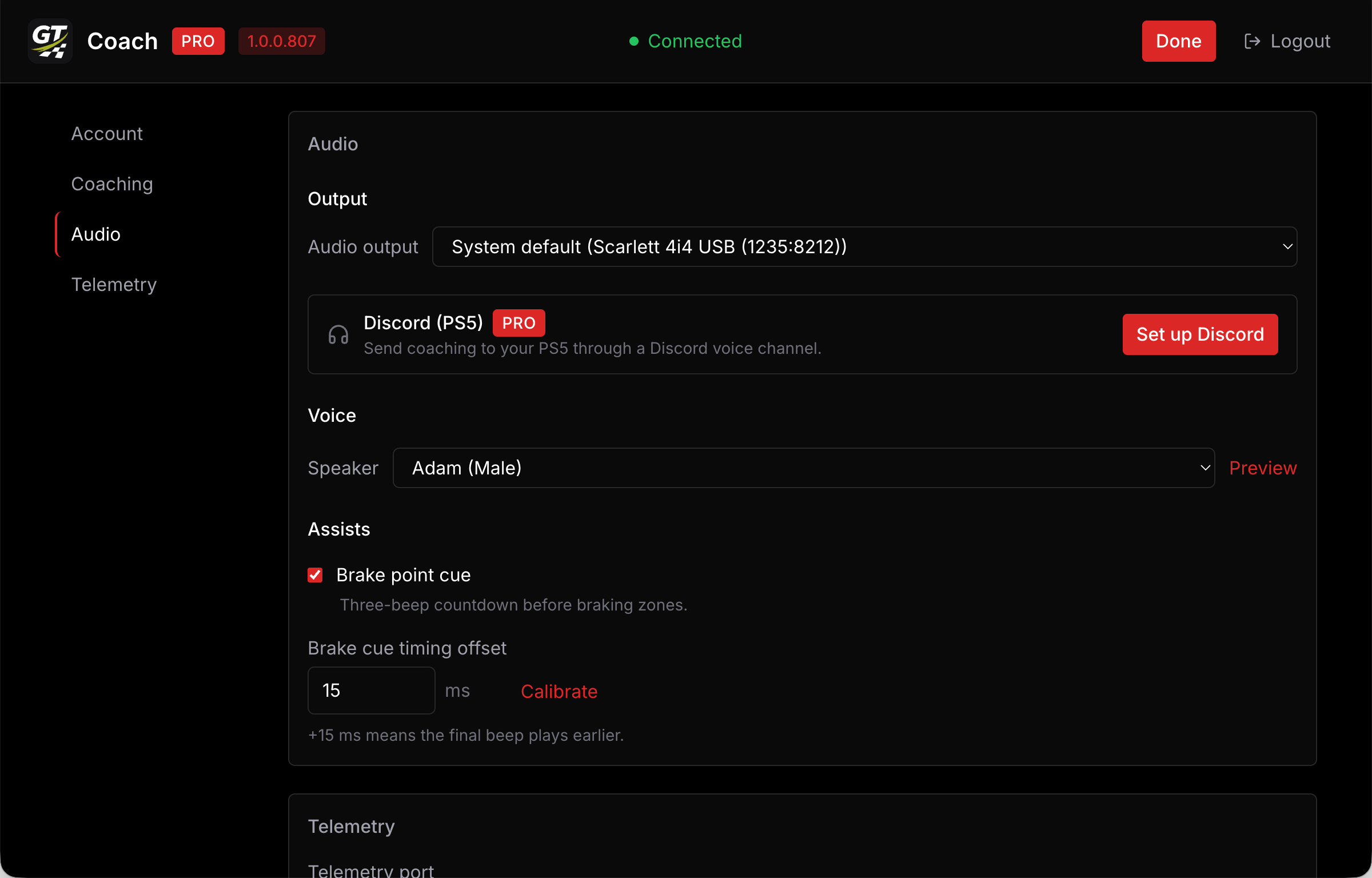
Open Settings, go to Audio, and choose Set up Discord.
-
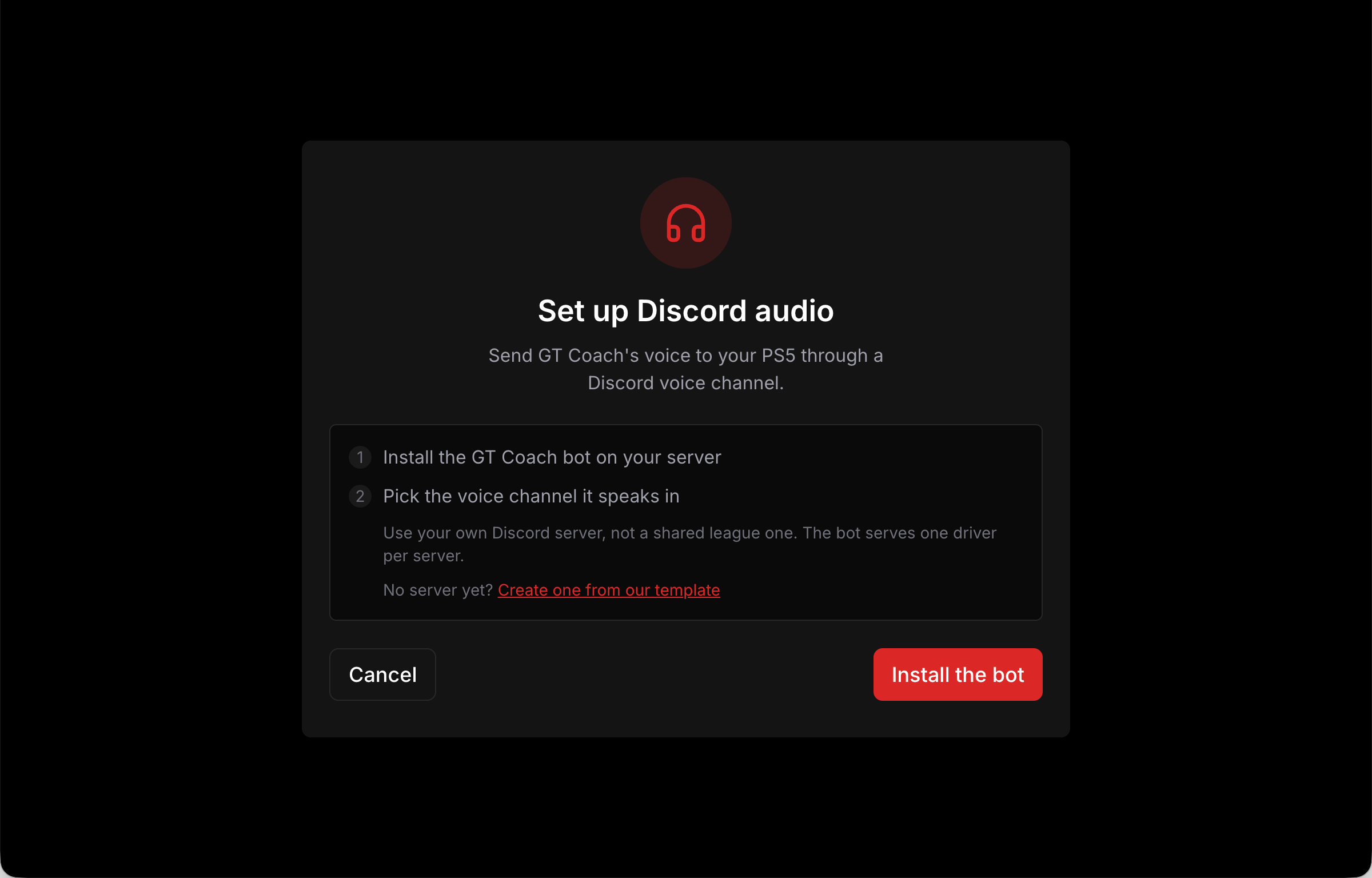
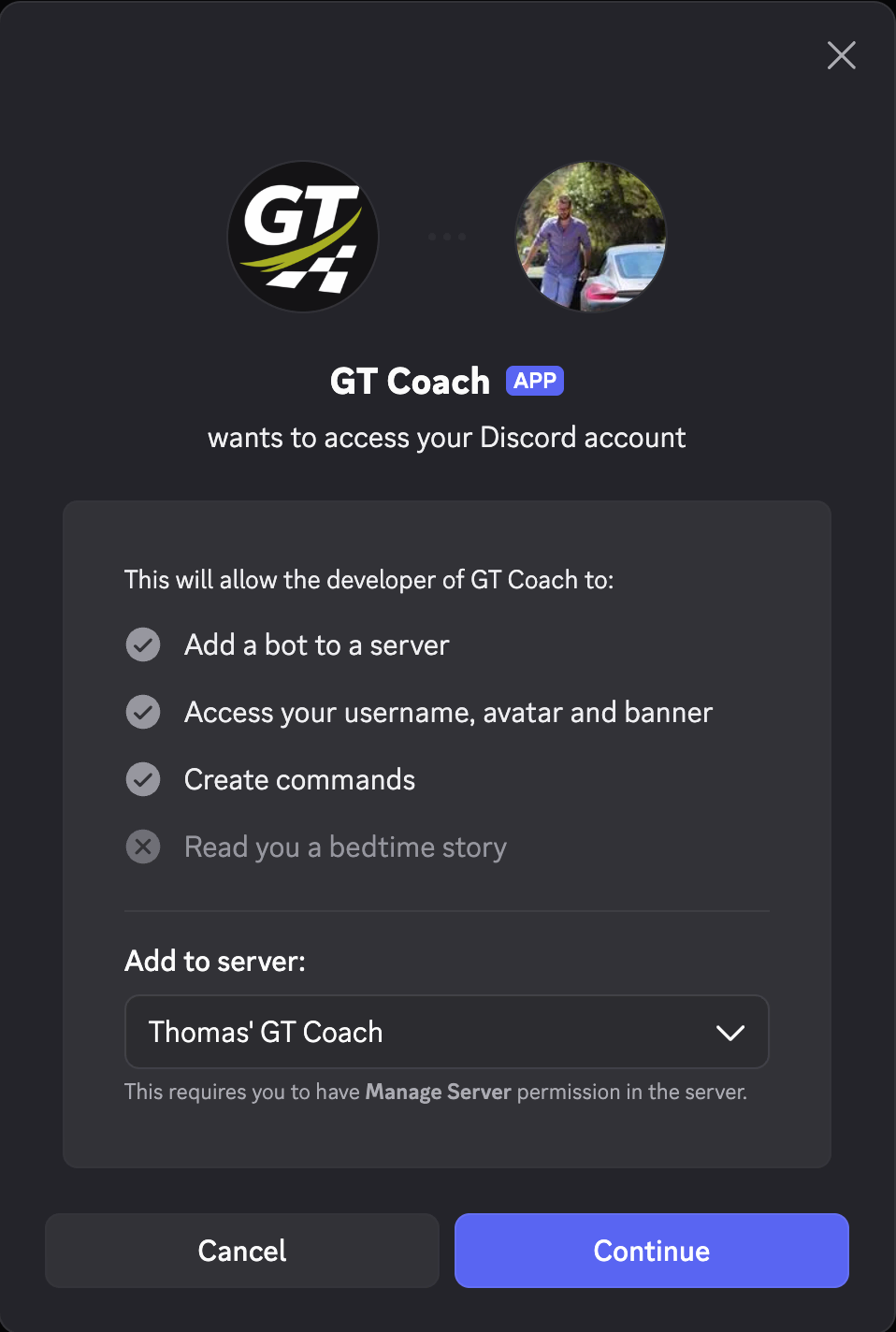
Install the GT Coach bot on your server. If you do not have one, the same step links a Discord template you can use to create your own server (it’s free and easy).
-
Pick the voice channel it speaks in.
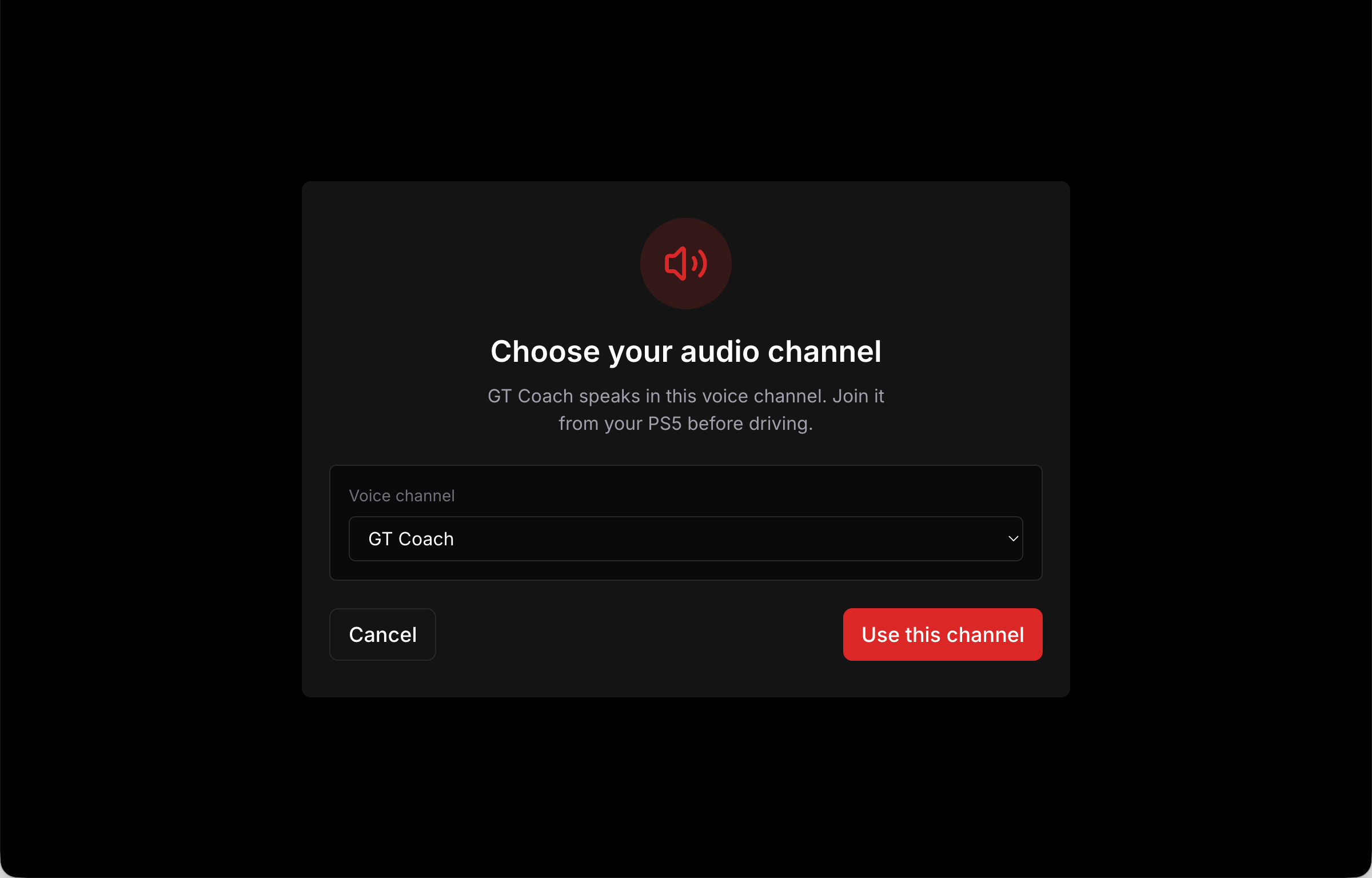
-
Link your PlayStation to your Discord account if you have not already. This happens on the PS5 side, outside GT Coach: Discord’s official guide walks through it.
-
Join that server and channel from your PS5 before you start driving: press the PS button, open the social section, find your server, and join the voice channel. You can stay as long as you want in this channel while on the PS5.
-
Run Calibrate to compensate for the latency of the Discord server. The process is explained on the brake point cue page.
-
Start a practice! The GT Coach bot automatically joins and leaves your channel when a practice is active.
If the audio stops mid-session
Section titled “If the audio stops mid-session”GT Coach tries to rejoin the channel on its own. While it is trying you will see Audio reconnecting… in the app.
In case GT Coach can’t reach Discord again, your session continues, so you don’t lose your progress. It is advised to end it and start a new one to force Discord to reconnect.
If it will not connect at all
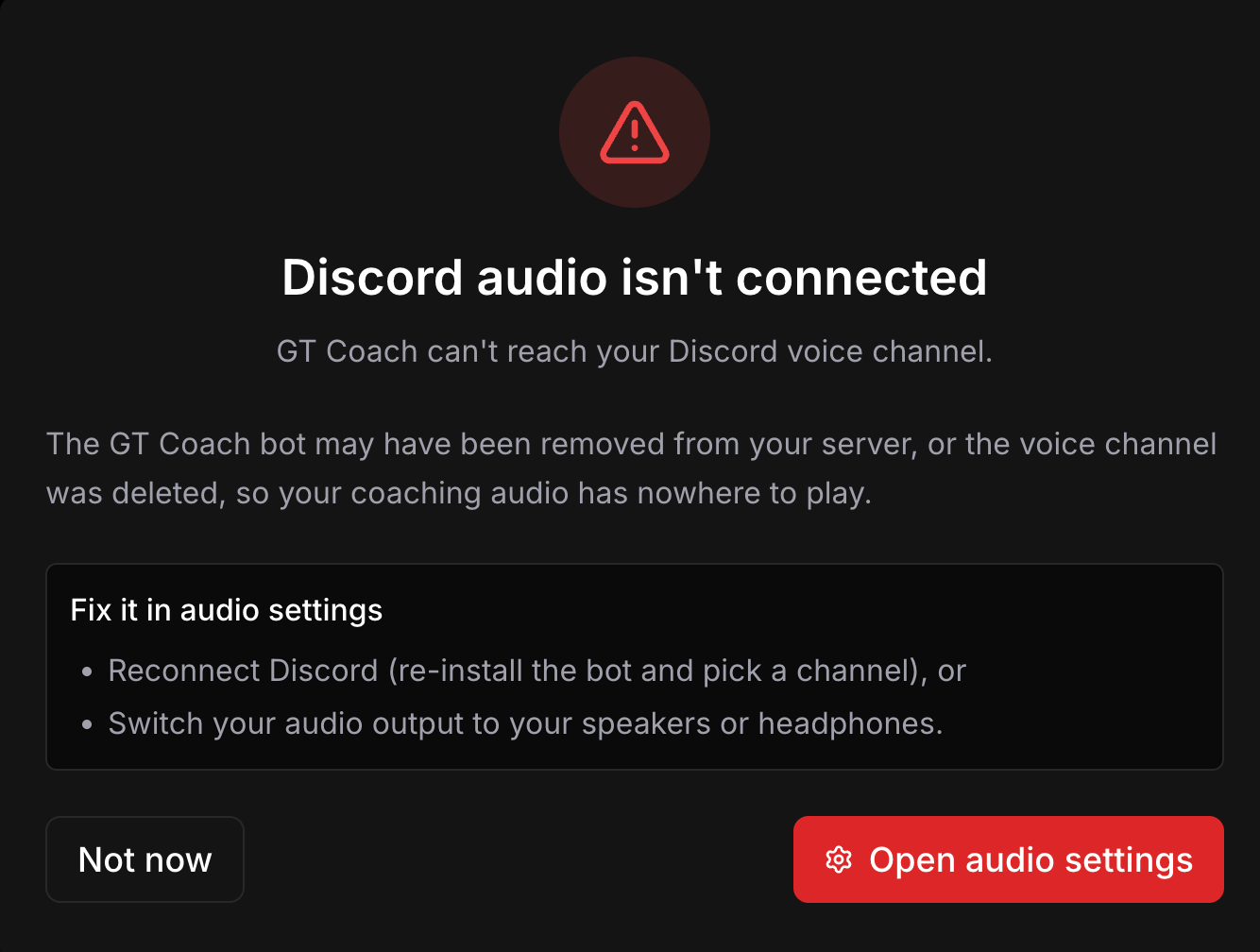
Section titled “If it will not connect at all”If the bot has been removed from your server, or the channel deleted, and GT Coach is still configured to use Discord as your audio output, it tells you it cannot reach your Discord voice channel and gives you two ways out: reconnect Discord from your audio settings, or switch your output back to your speakers or headphones.